Get started with Marro Client and Hub.
A plain-language walkthrough for everyone on the team: what Client and Hub do, how they fit together, and how to use them day to day.
Screenshots · sample data
Meet Marro
Marro helps people and teams manage the “AI assets” they build up while working with AI coding assistants such as Claude Code, Codex, and OpenCode: memory (lasting instructions and preferences for the AI), skills (reusable step-by-step workflows), MCP (settings that connect the AI to outside tools), and the history of your AI sessions.
Marro has two parts:
- Marro Client: an app on your own computer. It shows the sessions and assets of each AI assistant on that machine and installs the assets you choose into those assistants. Your data stays on your computer by default.
- Marro Hub: a website your team shares, set up by an administrator. The team shares and reviews AI assets here, manages who can use what, and can offer AI models for the whole team.
- AI assistants (Claude Code, Codex, …)
- Marro Client
- AI asset library and review
- Members and access
- Model gateway
- Connected by the administrator
The Hub never changes files on your computer. Installing assets and changing assistant settings always happen in the Client, which shows you a preview first and only applies changes after you confirm.
- Topic
- A category for assets. It also decides who can see them and whether using them needs administrator approval.
- Version
- Every change to an asset creates a new version; earlier versions remain viewable.
- Review
- New assets or changes from members are published to the team only after an administrator approves them.
Get started
- Ask your team administrator for an account. They will send you a link to set your password.
- Open the link, set your password, then sign in on the Hub member page (/hub-member).
- Install Marro Client (macOS or Windows). If the system blocks the first launch: on macOS, right-click the app and choose Open; on Windows, choose More info → Run anyway.
- Connect the Client to the Hub as described in “Connect to the Hub” below.
Closing the Client window does not quit the app; it stays in the system tray (menu bar). To quit, choose Quit from the tray menu.
Marro Client
Overview
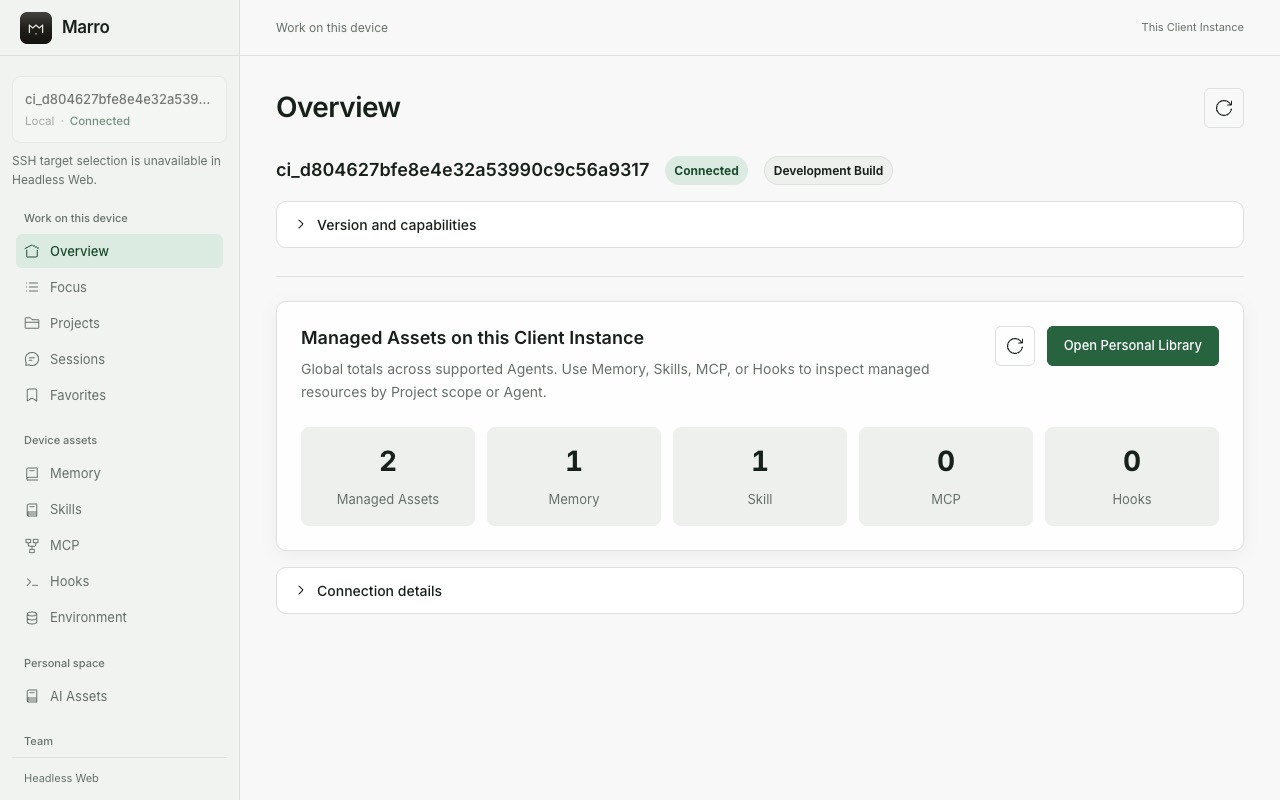
The Client opens on Overview, which counts the memory, skills, MCP, and other assets your AI assistants use on this computer. The left navigation is grouped into work on this device, device assets, personal space, and team.
Sessions: pick up earlier work
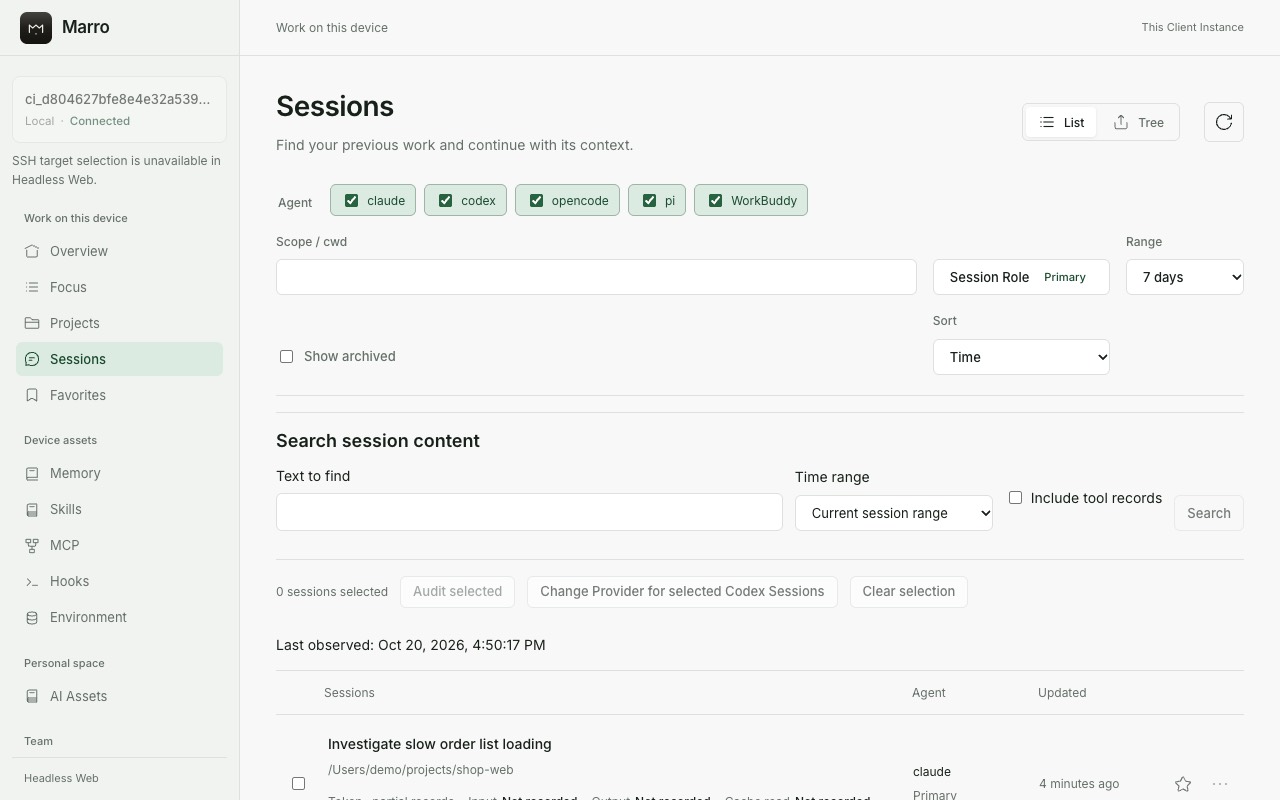
Sessions lists past conversations from each AI assistant. Filter by assistant, project, and time, search the conversation text, star the ones you use often, and see usage. Sessions are read on your computer only and are never uploaded to the Hub automatically.
Device assets
The Memory, Skills, MCP, and Hooks pages show what each assistant uses on this computer. View them by project or assistant, and edit, enable, or disable them. Every change shows a preview of the affected files first.
Personal asset library (desktop app)
AI Assets is your personal library. Collect useful memory, skills, MCP settings, and more, then pick several at once and, after a preview, install them into an assistant on this computer or another device. You can also back them up as a ZIP file.
Connect to the Hub
- Open Public Resources, click Connect resource center, and enter the Hub address.
- Click Sign in with browser. The Client shows a short code.
- Click Open Hub authorization and sign in on the Hub page that opens.
- Check that the code on the Hub page matches the one in the Client, tick the box, and click Approve Client sign-in.
- Return to the Client; it now shows that you are connected.
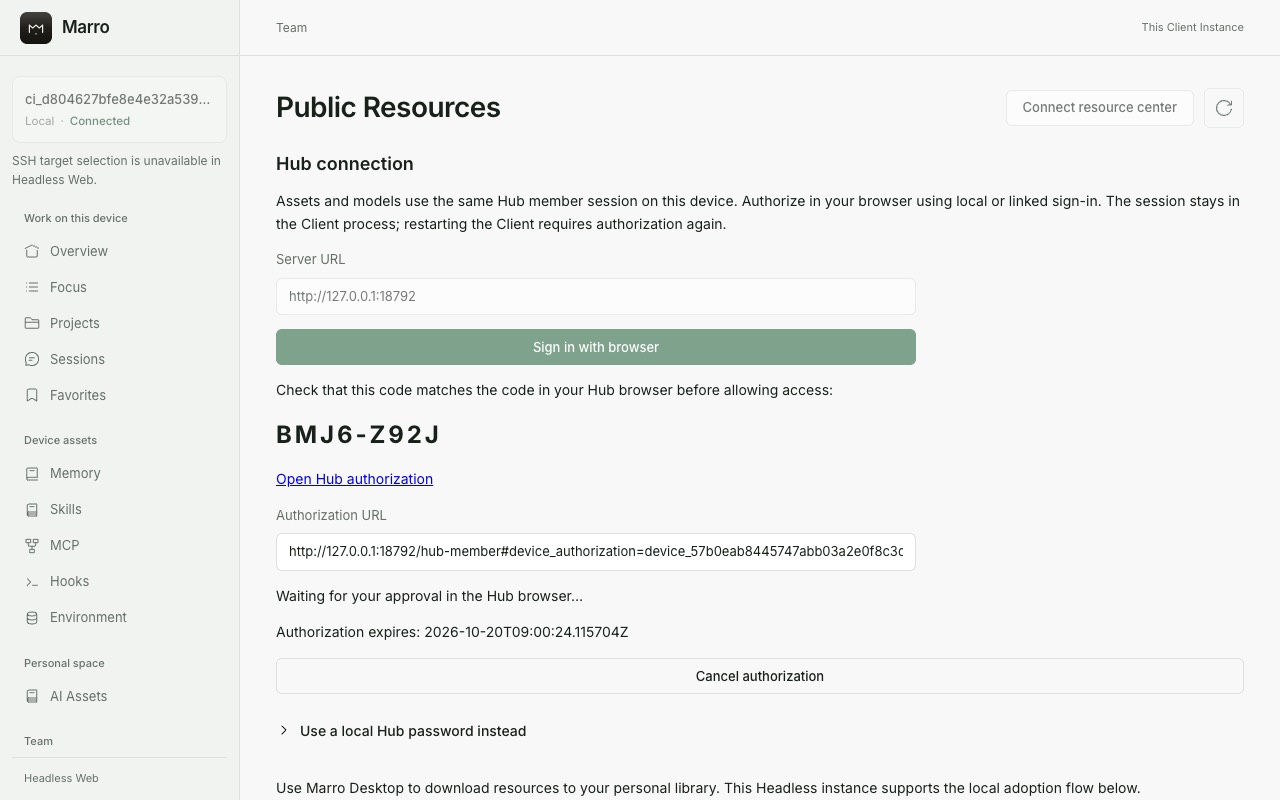
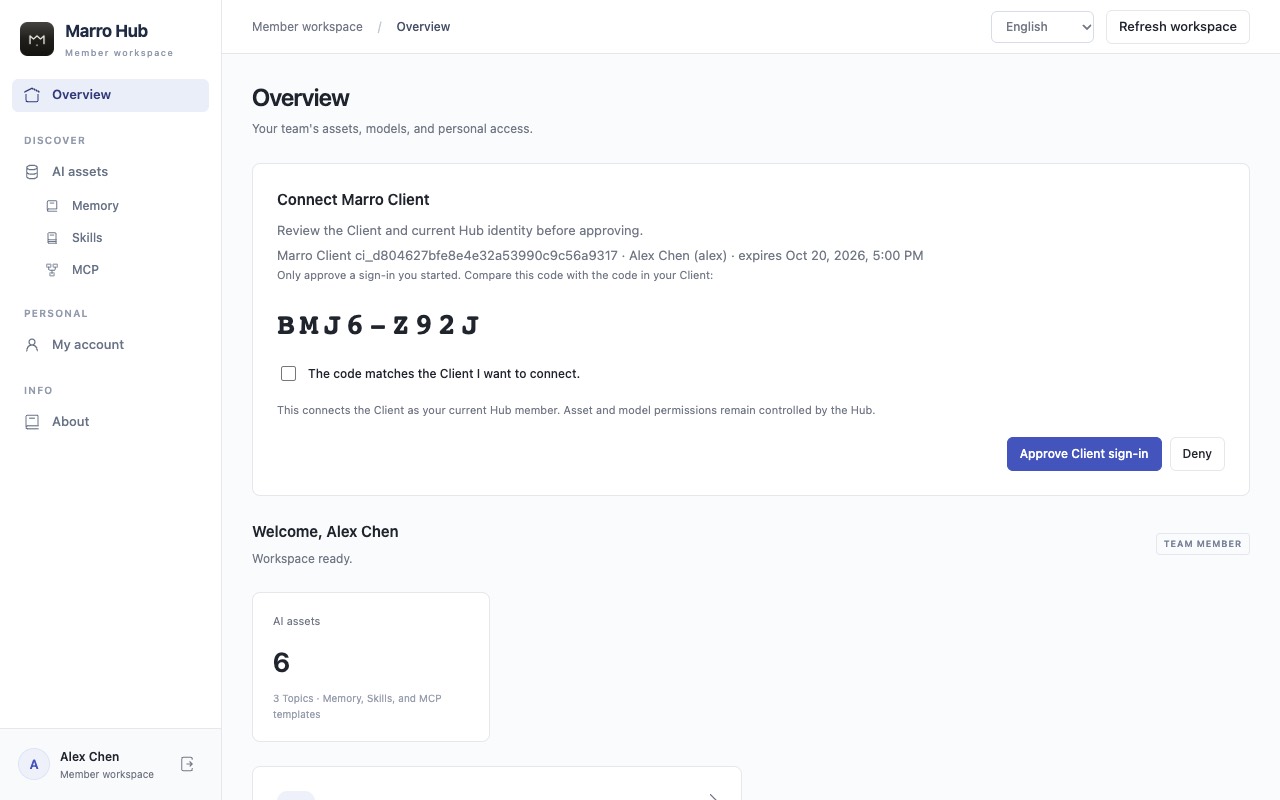
Only approve a sign-in you just started. The code is valid for 10 minutes, and you need to authorize again after restarting the Client.
Use team assets
Once connected, Public Resources lists the team assets you can see. Click Read to view one. Before using an asset, click Get access or Request access: some topics grant it right away, others need administrator approval. In the desktop app, download the asset into your personal library and install it into an assistant from there.
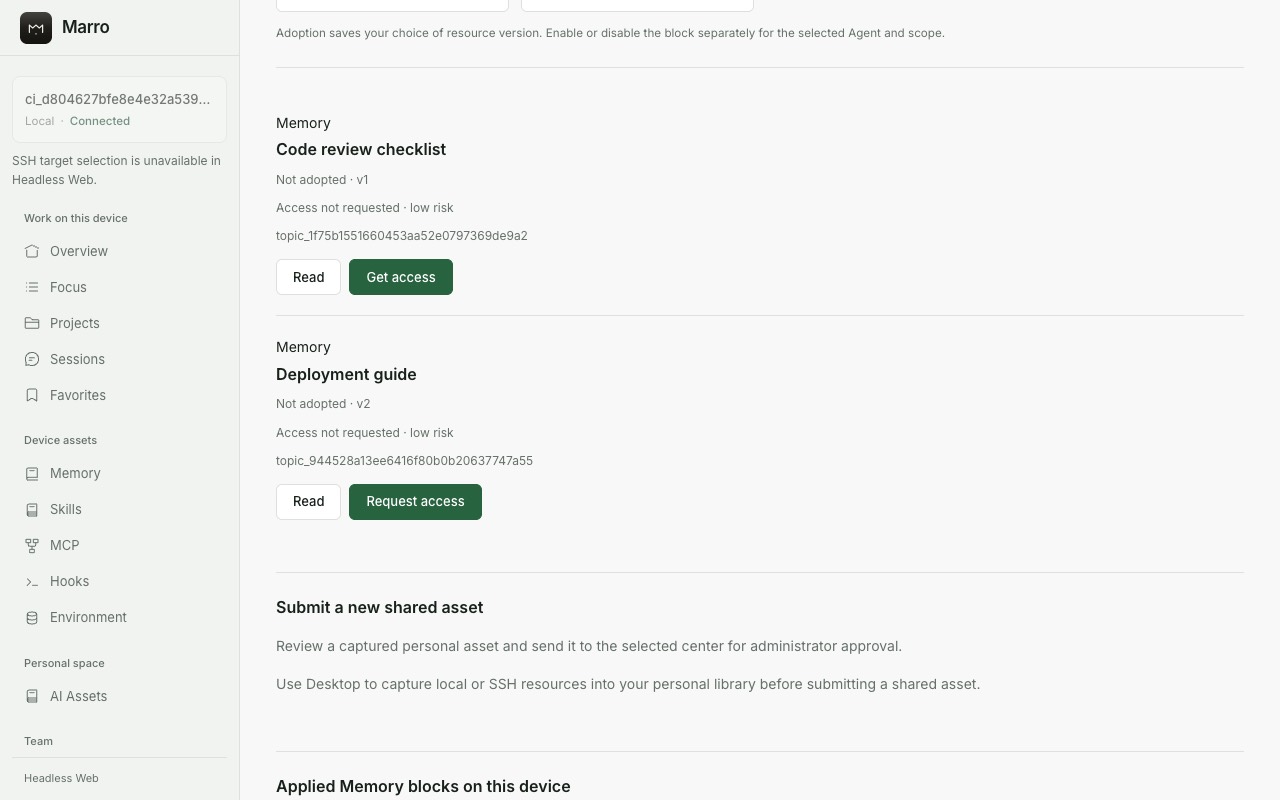
Downloaded assets keep working even if you disconnect, lose access, or the Hub is temporarily unavailable. New versions are not installed automatically; download them again when you want the update.
Use team models
If your administrator offers team models, Hub Models lists the ones you may use. Choose an assistant and a model, review the settings that will change, and confirm; the Client prepares a personal API key and updates the assistant's settings. If your access is withdrawn, model calls are refused.
Hub for members
Open the Hub member page (/hub-member) in your browser and sign in. The left navigation leads to AI assets, models (if available), and your account.
Browse AI assets
Under AI assets you will find Memory, Skills, and MCP, each with its own page. Search by name or filter by topic. Click an asset to see its content, version history, and your access.
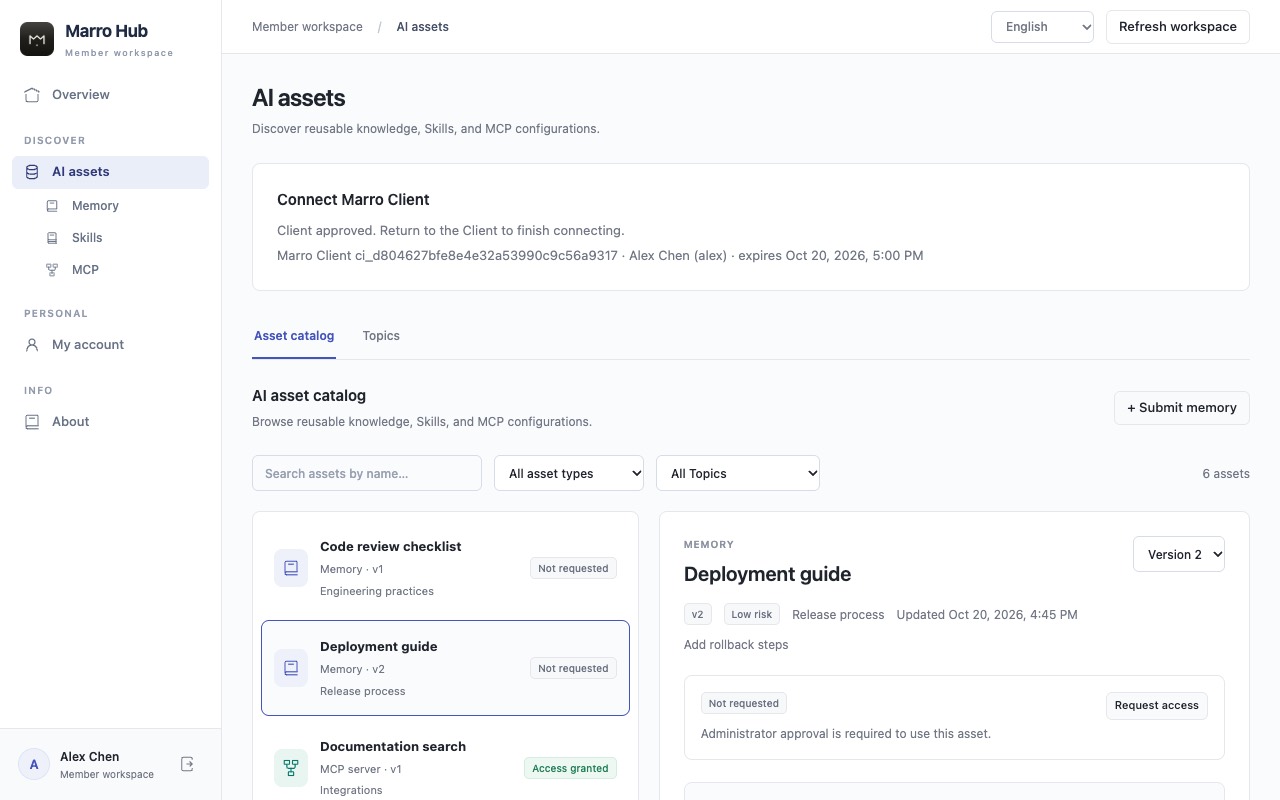
- Not requested: click Request access.
- Pending: waiting for an administrator; you can cancel in the meantime.
- Granted: download and use it from the Client.
- Rejected or revoked: you can request again.
Contribute assets
- Submit memory: click Submit memory in the asset catalog.
- Improve a memory: select it, then use Propose version, Edit Topics, or Rename.
- Import public GitHub skills: on the Skills page, click Import GitHub Skills, enter the repository address, tick the skills you want, and choose a topic.
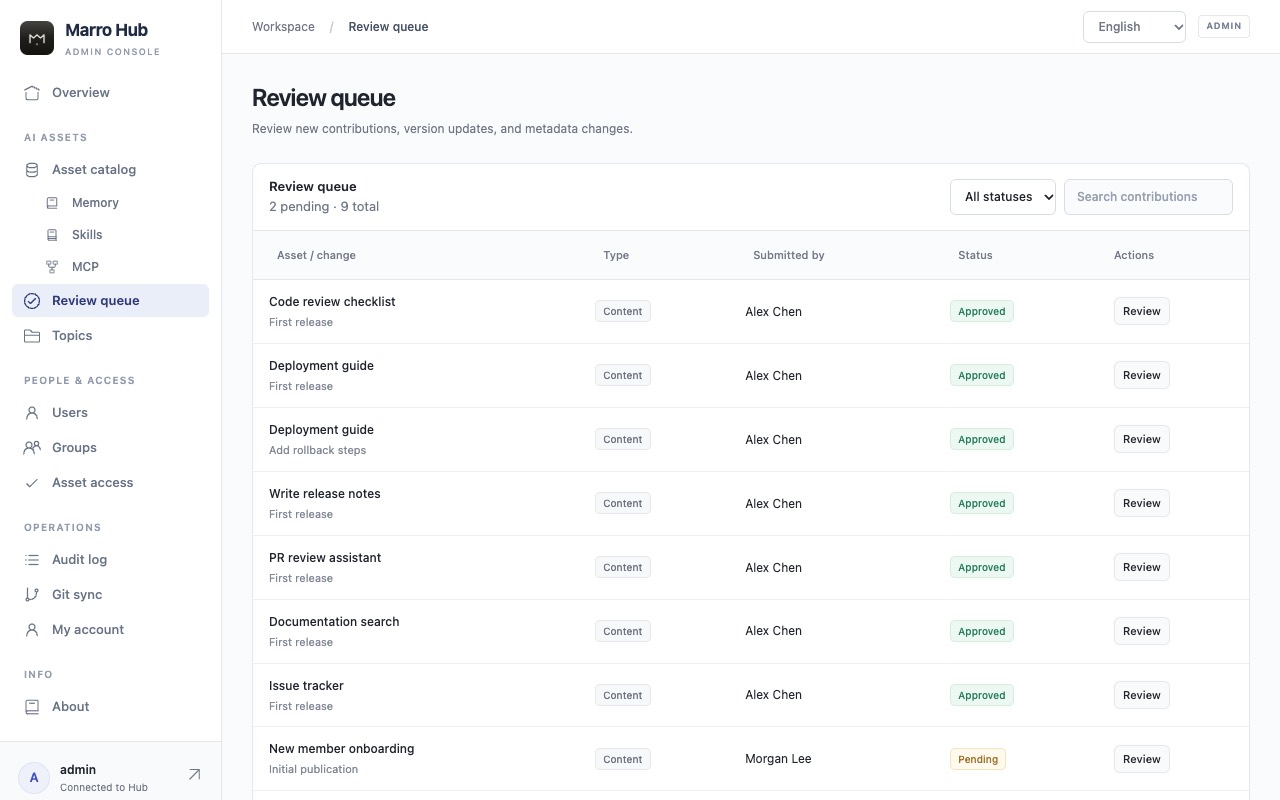
Member submissions go to the review queue and are published after an administrator approves them.
Models, API keys, and usage
When model services are on, Models lists what you can use, API keys lets you create, rotate, or revoke your keys, Connection profiles gives the addresses to copy, and My usage shows your requests and usage. A new key is shown only once, so save it right away. Costs shown are estimates based on configured prices, not a bill.
Hub for administrators
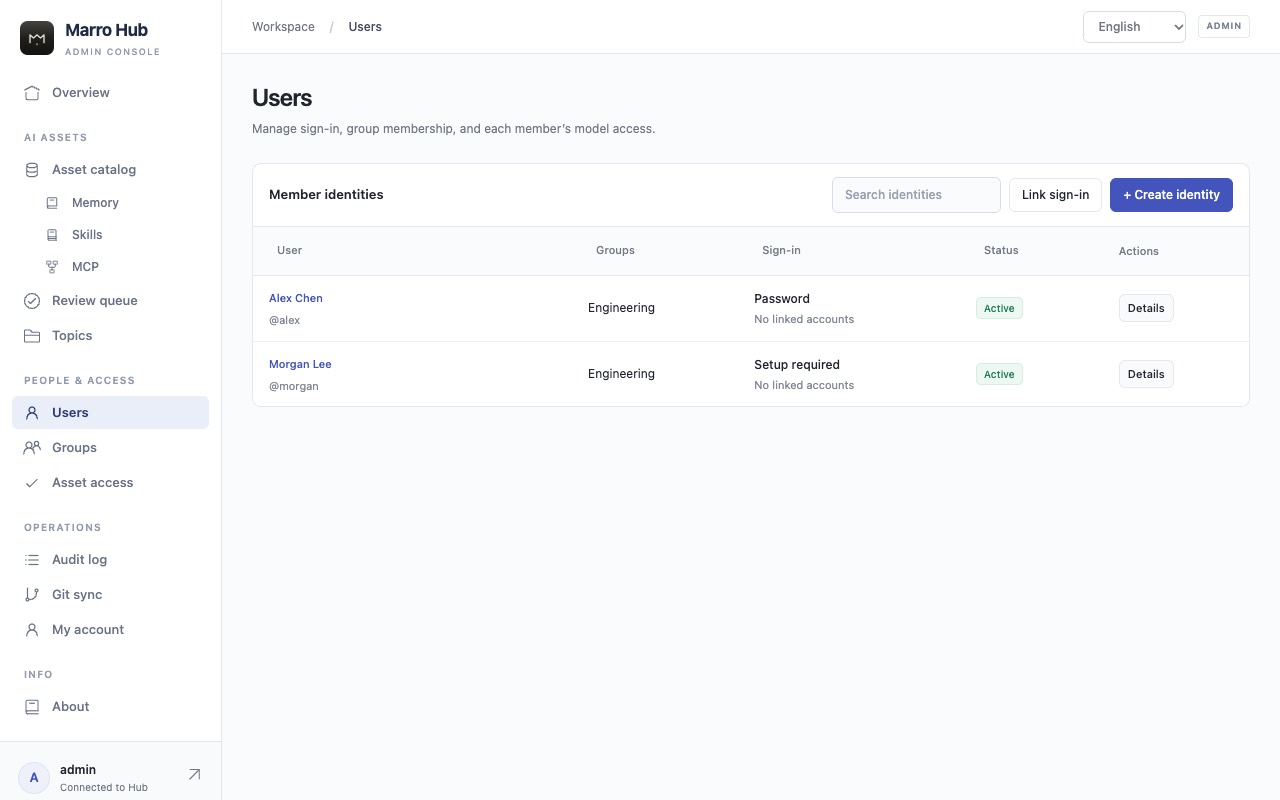
The admin console is at /hub-admin. Click Connect in the top right and enter the administrator token created during setup. The token is powerful: keep it in a password manager and never share it with members.
Users and groups
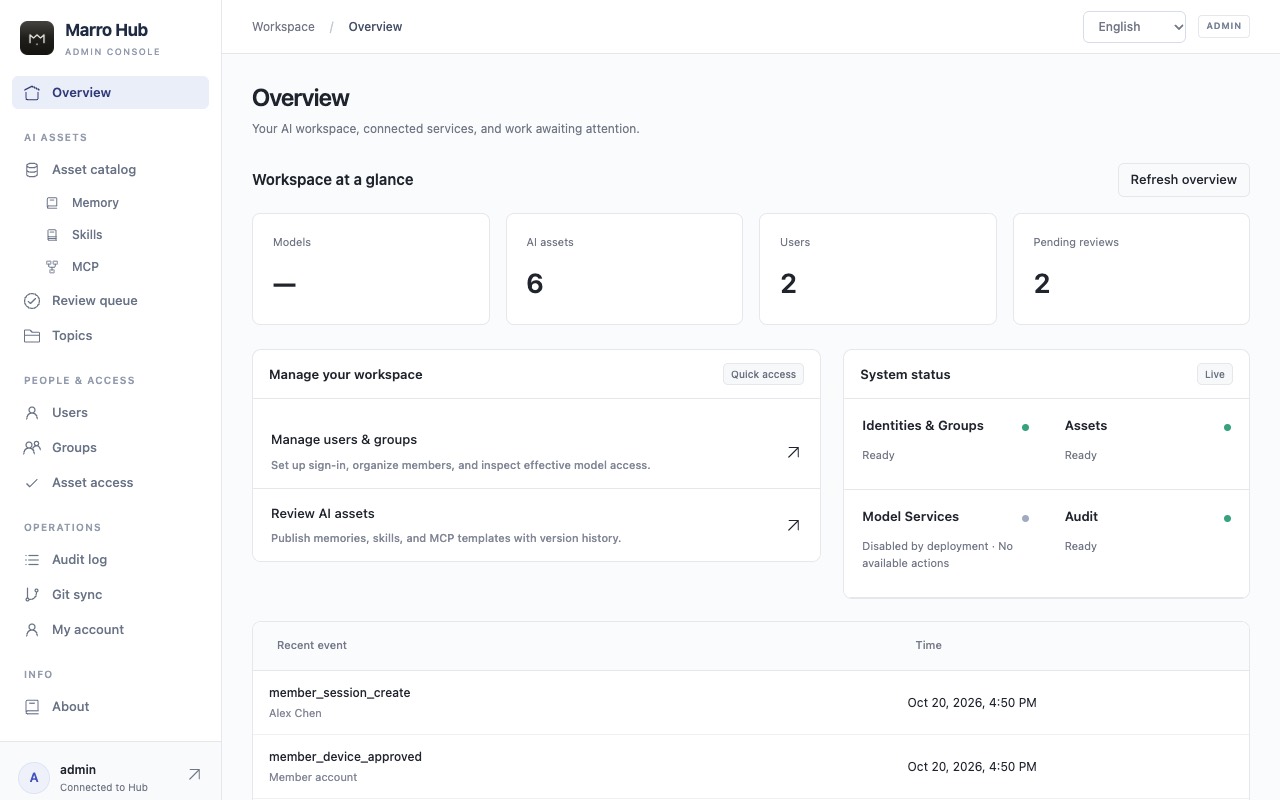
- On Users, click + Create identity, enter a username and name, and optionally add groups.
- Open the user, click Issue first password link, and send the link through a safe channel.
- Use groups to manage access in bulk: model access and quotas given to a group apply to all its members.
Reviews, topics, and asset access
- Review queue: see new assets and changes from members, read them, then approve or reject.
- Topics: organize assets and decide who can see them and whether use needs approval.
- Asset access: handle members' access requests and revoke access when needed.
Model gateway
- In Providers, connect your model provider accounts.
- In Models, set up the model names your team will use.
- In Model access, grant models to users or groups, and use Quotas to limit requests and usage.
- Check Usage to see consumption; costs are estimates.
Operations
Audit log records every configuration and permission change. Git sync publishes the assets of selected topics to a Git repository, or imports changes from it into the review queue; anyone who can read that repository can see what is published.
FAQ
- Why can't I see an asset?
- Its topic may be limited to certain members, or it may still be under review. Ask your administrator.
- Do installed assets still work after I disconnect?
- Yes. Downloaded assets keep working; you only need to reconnect to get new versions.
- Are my sessions uploaded to the Hub?
- No. Sessions are read on your computer only, unless you choose to export or submit something.
- Is the cost shown my bill?
- No. It is an estimate based on prices set by the administrator; the provider's bill is the actual cost.
- I forgot my password.
- Ask your administrator to issue a new password link.
Screenshots in this guide use sample data.